Common Data Issues in Regulatory Submissions
Why Excel Causes Issues with CSV Files and Data Formats
 Author:
Ruoxuan Wang
Author:
Ruoxuan Wang

Senior Operations Analyst
13 May 2026
In trade and transaction reporting regimes such as MiFIR, firms are required to submit highly structured data. These reports depend on precise formatting across a wide range of fields, including identifiers, timestamps and valuations. Even minor inconsistencies can lead to rejected submissions or reconciliation breaks. While many assume reporting issues stem from regulatory complexity, in practice a common root cause is far simpler: the handling of CSV files.
Where the Problem Starts
The most common culprit of errors in CSV files is Excel. In short, opening a CSV file in Excel and then resaving will distort and lose the original data format.
This will result in an “invalid data format” when downstream systems or platforms read the CSV file and expect a specific date format or convention. Excel will always impose its own regional date formats (mm/dd/yyyy versus dd/mm/yyyy) as well as adopting scientific notation on long numeric fields. Both changes result in the CSV file no longer following the data formats required by the regulator.
What Goes Wrong in Practice
The issue lies in how Excel treats CSV files when the file is resaved. Although CSV is a plain text format, Excel automatically interpret and reformat the data.
As a result, long identifiers such as LEIs may be converted into scientific notation, ISO timestamps may be changed into local date formats, leading zeros in identifiers can be removed, and delimiters or encoding settings may change without warning. The data may still appear correct at a glance, but fail validation when submitted to a regulator or trade repository.
The Hidden Risk
A particularly overlooked risk is that these changes can occur even when no edits are made. Simply opening and saving a CSV file in Excel can alter its structure, as the application automatically applies formatting rules rather than preserving the original text.
In a regulatory context, these seemingly minor changes can have significant consequences, including failed submissions, reconciliation issues, increased operational effort and potential regulatory scrutiny.
How to Reduce the Risk
To minimise data integrity issues, we recommend the following approach:
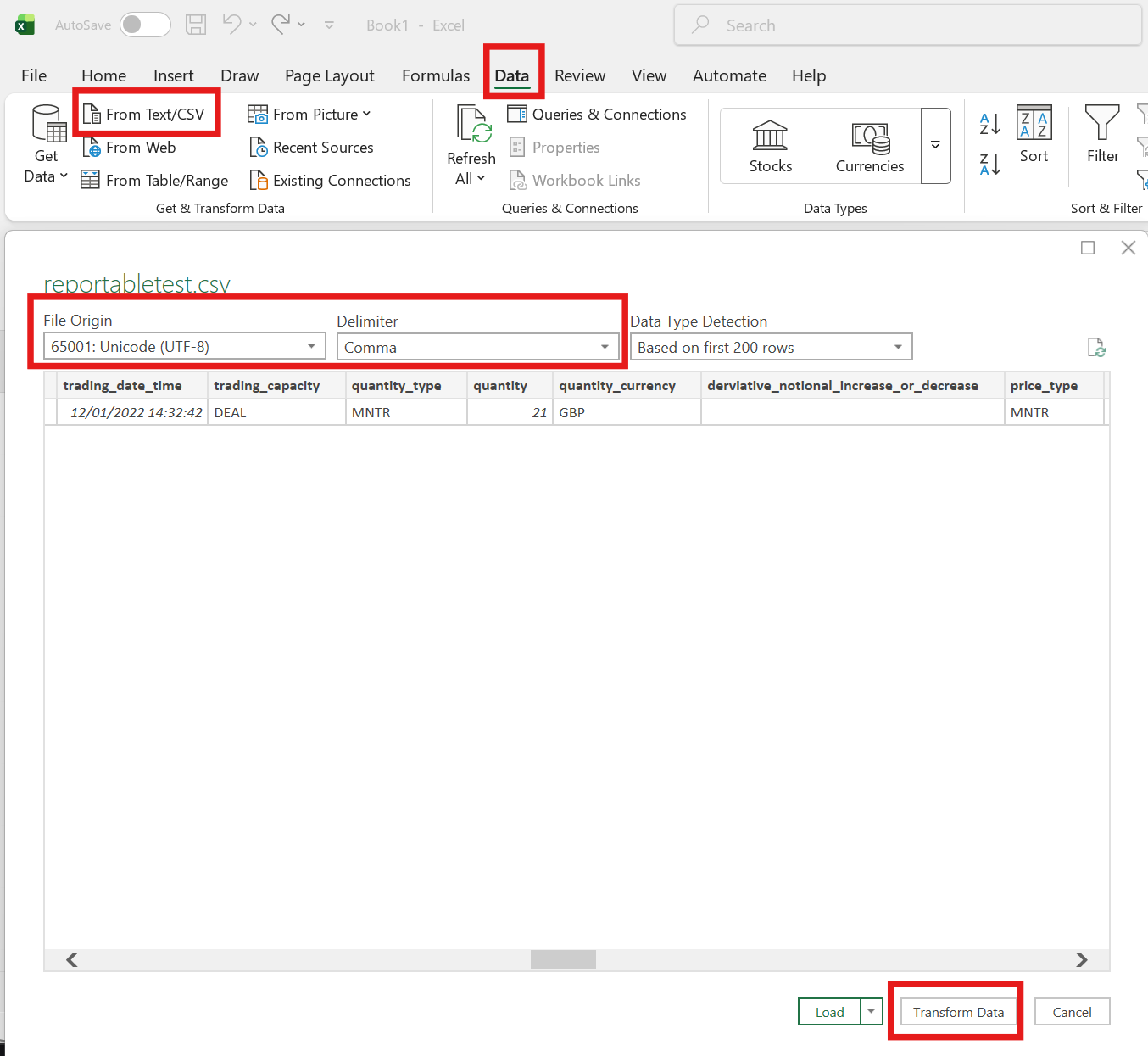
1. Import CSV Files Properly
- In Excel, use Data → From Text/CSV instead of opening the file directly
- Select File Origin: UTF-8
- Select the correct delimiter, for example comma
- Choose Transform Data rather than Load
2. Control Data Types
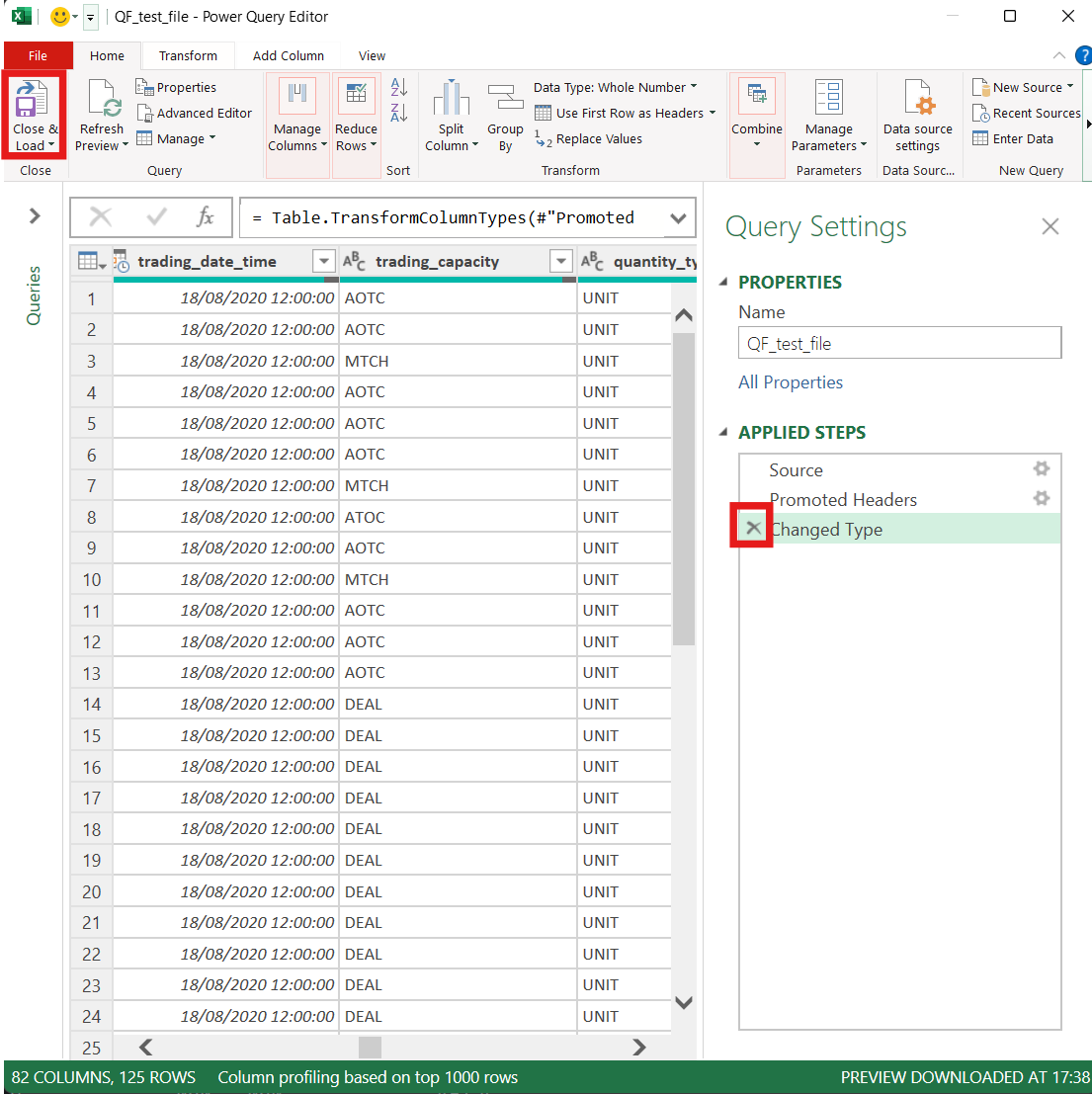
- Review all column types carefully
- Remove the automatic “Changed Type” step in Power Query
- Ensure key fields such as LEIs, timestamps and expiry dates remain as Text
3. Save Carefully
- Use Save As → CSV UTF-8
- Avoid overwriting original files
- Validate delimiter and encoding before submission
4. Use Appropriate Tools Where Possible
For more technical workflows, consider using:
- Python, for example pandas with dtype=str
- Code editors such as VS Code or PyCharm
- Plain text editors for validation
These approaches help preserve data exactly as intended.
Final Thoughts
At Qomply, these types of issues are commonly observed during the preparation of regulatory reports. CSV files are often perceived as simple, but in a regulatory environment they can introduce hidden risks. Small, invisible formatting changes can translate directly into submission failures. Robust handling of CSV data is therefore not just a technical consideration, but a critical component of accurate and compliant regulatory reporting.
To support firms, a free tool is available to help convert between XML and CSV formats more reliably, reducing the risk of formatting errors during data preparation: Convert MDP XML Files to CSV for MiFID.
Key Takeaways
- Excel can unintentionally change CSV data formats, even when users make no deliberate edits to the file.
- Formatting issues such as altered dates, scientific notation and removed leading zeros can directly trigger regulatory submission failures and reconciliation breaks.
- CSV handling is a control issue, not just a technical issue, because small invisible changes can create operational effort, validation failures and regulatory scrutiny.
- Proper import and save practices matter: using Transform Data, keeping key columns as Text, validating encoding and avoiding overwriting originals all reduce risk.
- Using more suitable tools where possible, such as Python, code editors or plain text editors, helps preserve exact data formats for regulatory reporting workflows.